Initial Scene Setup
This page summarizes the settings you should review after opening the scene and before uploading.
RoomOwner settings
LuminousOasis includes a RoomOwner system that lets you pre-register usernames to restrict access to the pool area.
If the player's name matches a RoomOwner entry, a key appears from the console and they can unlock the entrance.
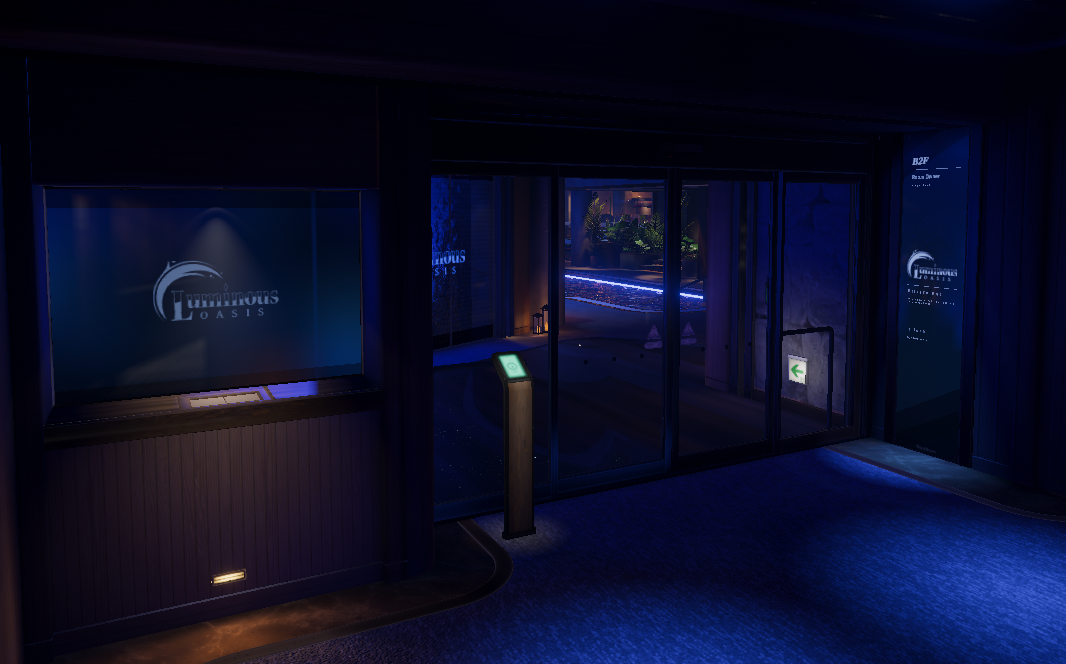
If you use LuminousOasis by itself
Register names in RoomOwnerList from the following location. When a user is set as RoomOwner, their name is displayed at runtime and they can obtain the entrance key.

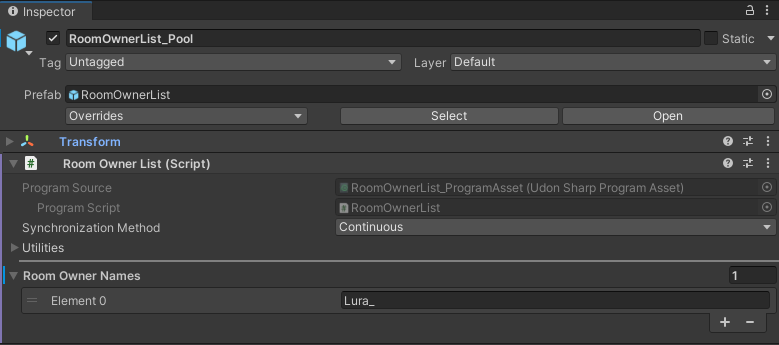
You can register multiple RoomOwners. The check uses the VRChat username, so register your own name or your friends' names as needed.
If you want to use it together with LuminousHotel
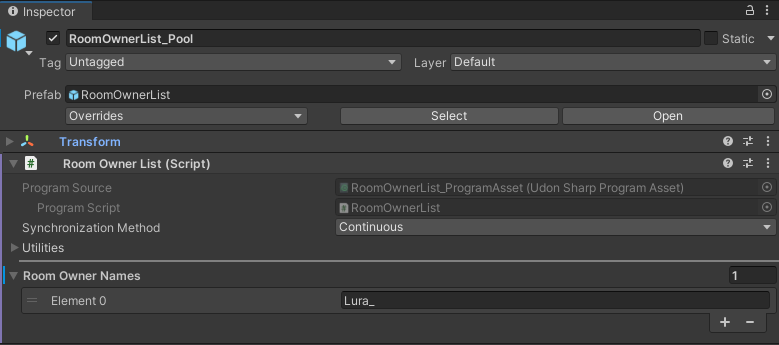
In the FullPack_OasisPlus scene, you need to register RoomOwner names for each room. Set the required names for each room individually.

BGM settings
To make world BGM easy to set up, LuminousOasis includes a simple playback system called MusicSequencer.
MusicSequencer can play BGM continuously and loop it. It is a lightweight solution, but it is ready to use.
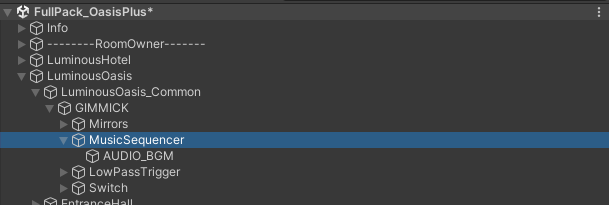
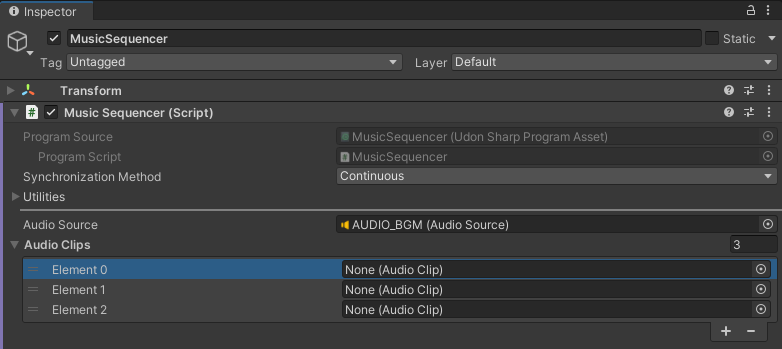
Video playback can be unstable depending on the player's environment, so importing audio files is recommended if you want to avoid silent world BGM.
Audio is managed by LowPassTrigger, so the sound feels muffled inside areas such as the entrance and lounge.
Because the AudioSource used by MusicSequencer is also controlled by LowPassTrigger, the occlusion effect is already applied. No extra work is required.
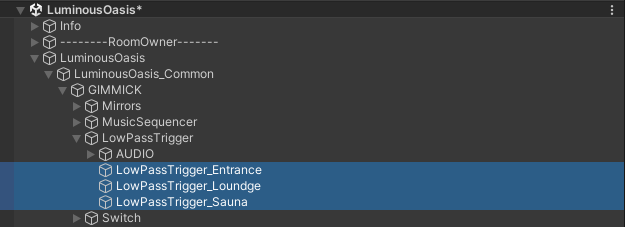
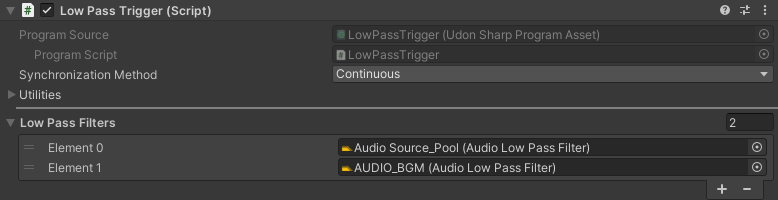
If you add another audio source later, you can include it there so it is also affected by the occlusion system.
Video player settings
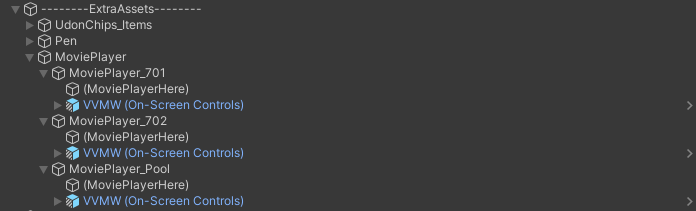
By placing a video player under MoviePlayerHere, it will appear with the intended position, rotation, and scale. Fine-tune it if needed.
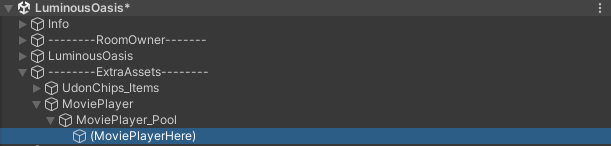
Configure your preferred video player and use it as needed.
Recommended video player: VizVid
The recommended video player is VizVid.
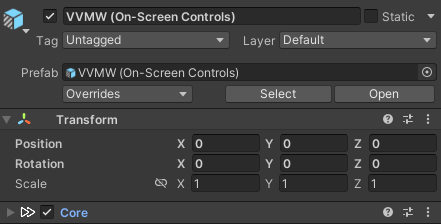
If you use VizVid's On-Screen Control, placing it at MoviePlayerHere lets it work as-is. If you use another player, adjust the placement manually.
For detailed information about the video player itself, refer to the VizVid manual.
Next page
Continue to Upload and Quest Support to prepare the world for publishing.