Upload and Quest Support
Once the scene settings are ready, prepare uploads for both the PC and Quest versions.
Uploading for PC
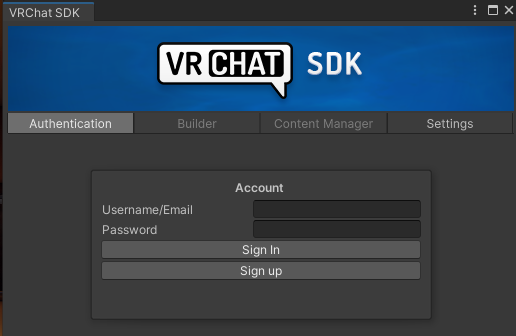
Open Show Control Panel from the VRChat SDK and log in.
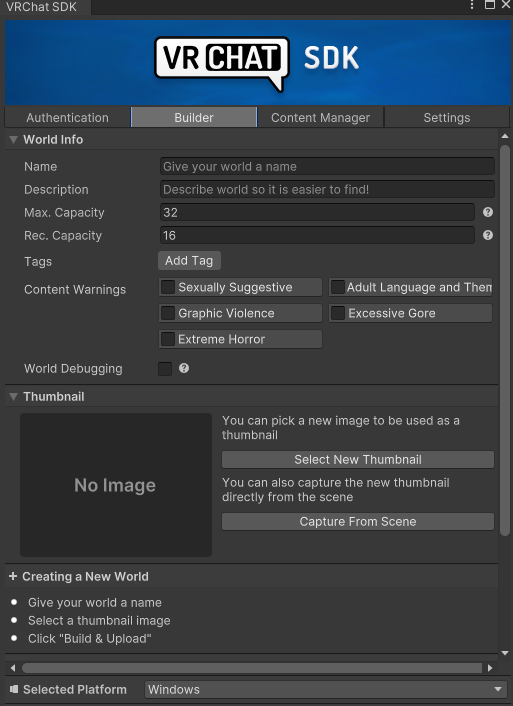
Set the world name and thumbnail.
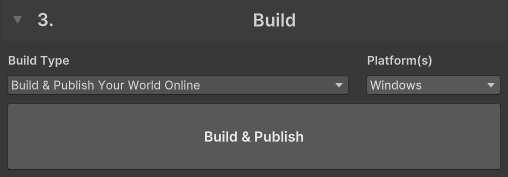
Click Build and Upload to publish the world.
Uploading for Quest
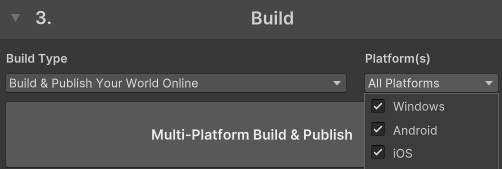
Enable Windows / Android / iOS in the platform section. The first platform switch can take quite a while.
Supported scope for iOS / Android uploads
Only the standalone LuminousOasis scene supports iOS / Android uploads. FullPack_OasisPlus, which is used together with LuminousHotel, exceeds the size limit and does not support iOS / Android uploads.
Tip
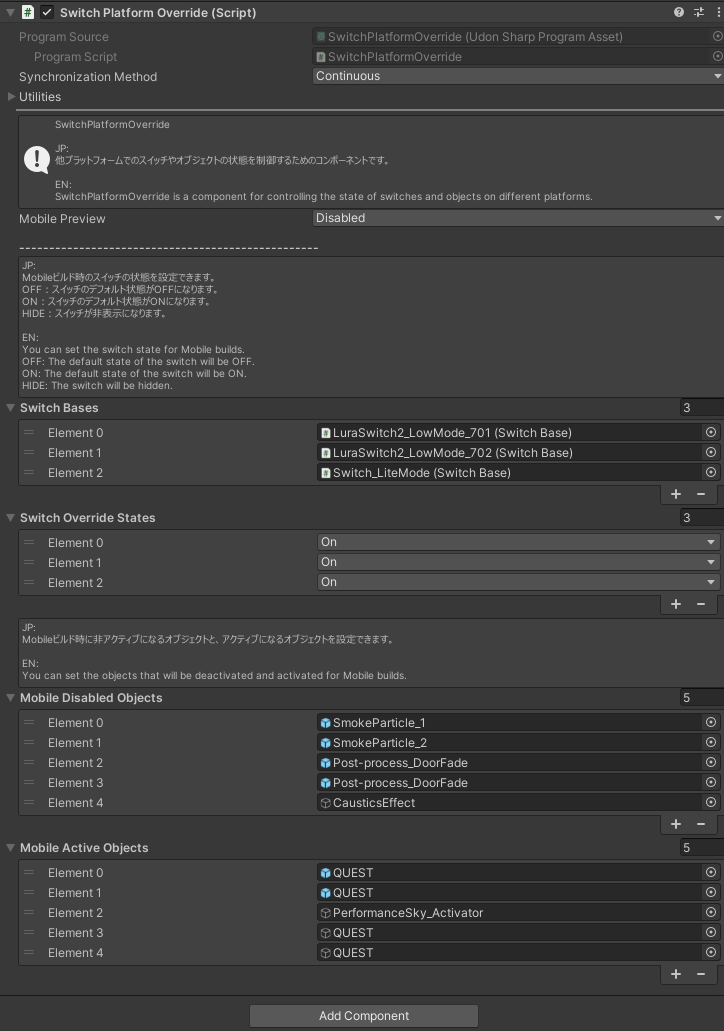
The scene already contains a gimmick that automatically switches certain objects on and off during iOS / Android uploads, so you can use it for performance tuning.

Next page
Review setup notes and common issues on FAQ.