Upload and Quest Support
Once the scene settings are ready, prepare uploads for both the PC and Quest versions.
Uploading for PC
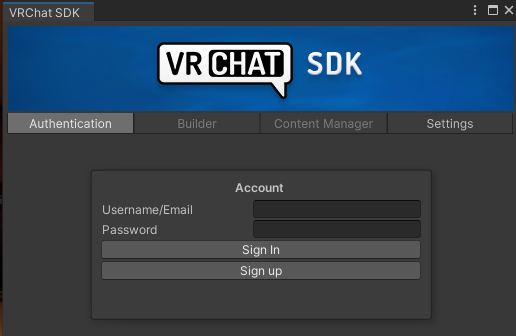
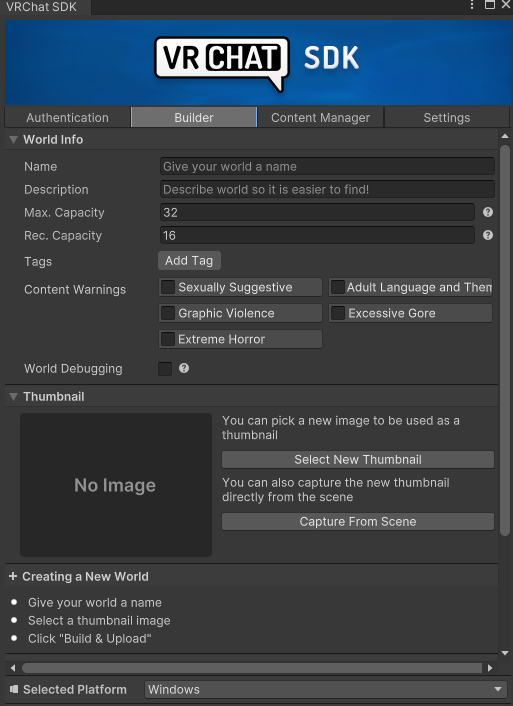
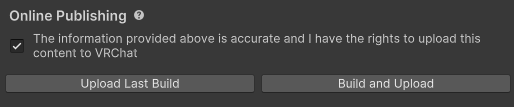
Open Show Control Panel from the VRChat SDK, log in, set the world name and thumbnail, then run Build and Upload.
Uploading for Quest
Change Selected Platform at the bottom of the SDK panel from Windows to Android, then build again. The first switch can take some time.


Optimization settings for Quest
For the Quest version, enable the optimization objects marked Turn it Active during Quest before uploading.
Before uploading the Quest version, enable the objects labeled Turn it Active during Quest.

If lightmaps break in the Android build
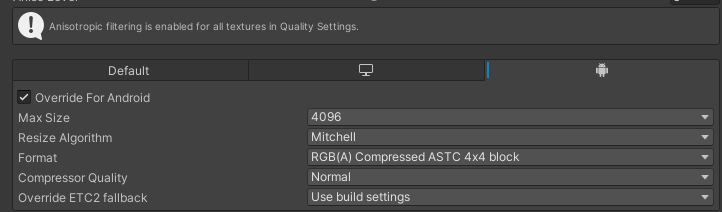
If the colors break in the Android build after rebaking the lighting, change the lightmap Format to RGB(A) Compressed ASTC 4x4 block.
Change the lightmap Format to RGB(A) Compressed ASTC 4x4 block.
Notes
Before publishing, it is a good idea to enter Play mode once and confirm that RoomOwner, sign plates, mood objects, and the video player behave as expected.
Next page
You can review common issues and adjustment points on Troubleshooting.