Initial Scene Setup
This page summarizes the settings you should review after opening the scene and before uploading.
RoomOwner settings
You can register multiple people in RoomOwner. Registered users have their names shown on the display at runtime and can access the mood board sign plate.
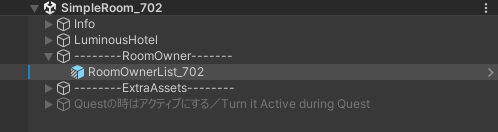
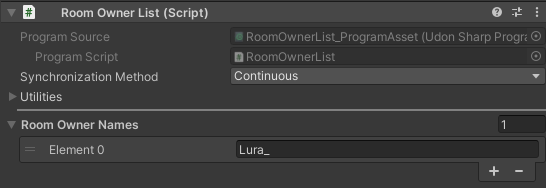
The check is based on the VRChat username. Register your own username or your friends' usernames as needed.

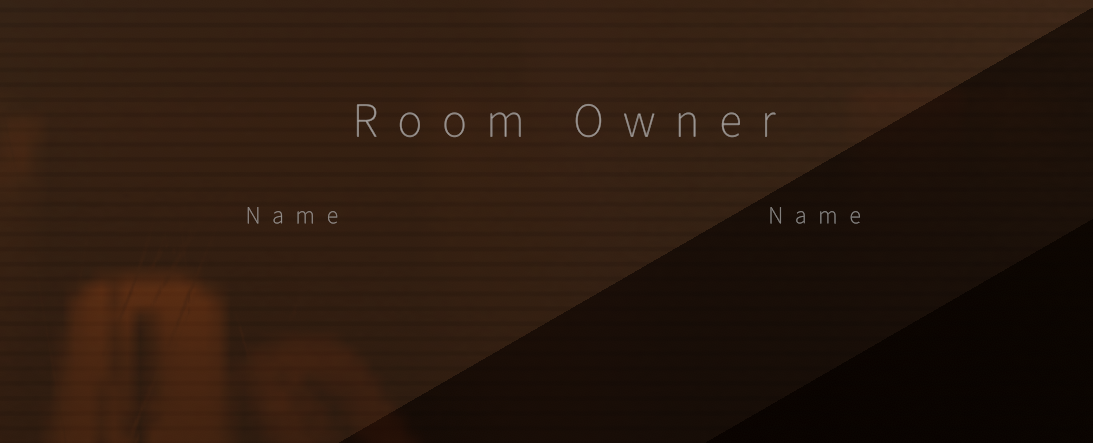
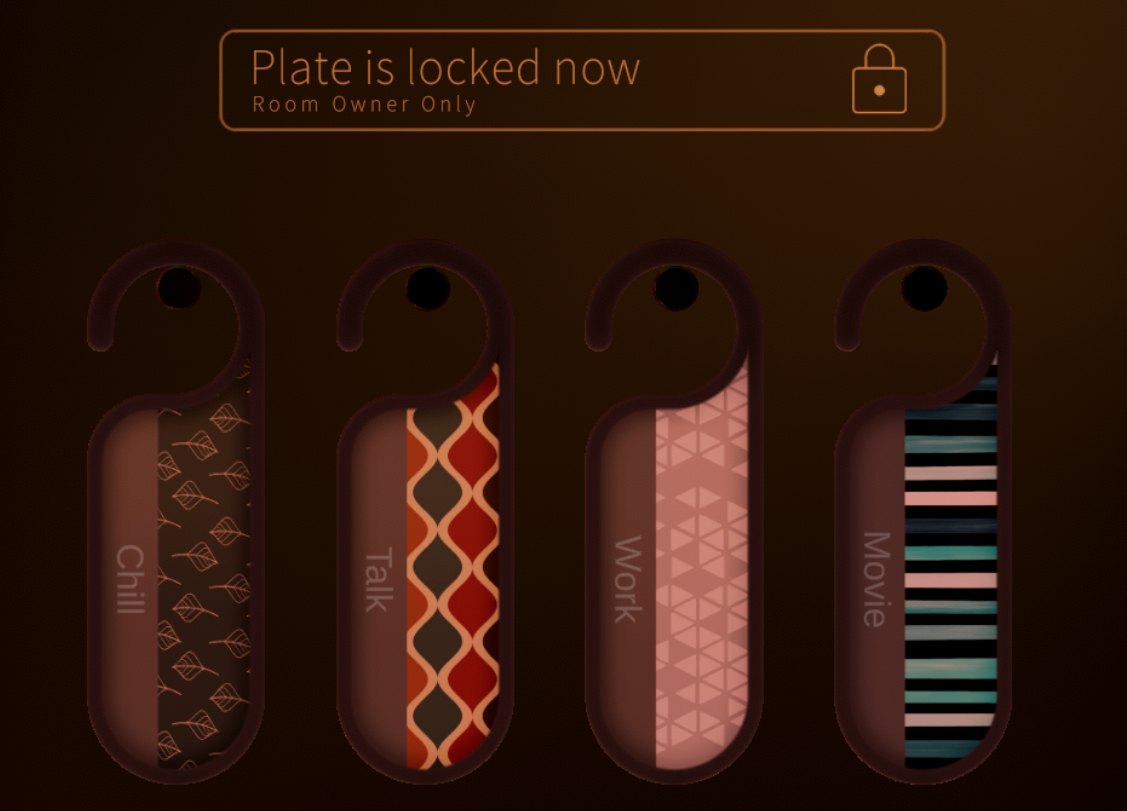
If you use the Full Pack, users registered in RoomOwner can use the room key in the lobby. Rooms 701 and 702 can each have their own list.
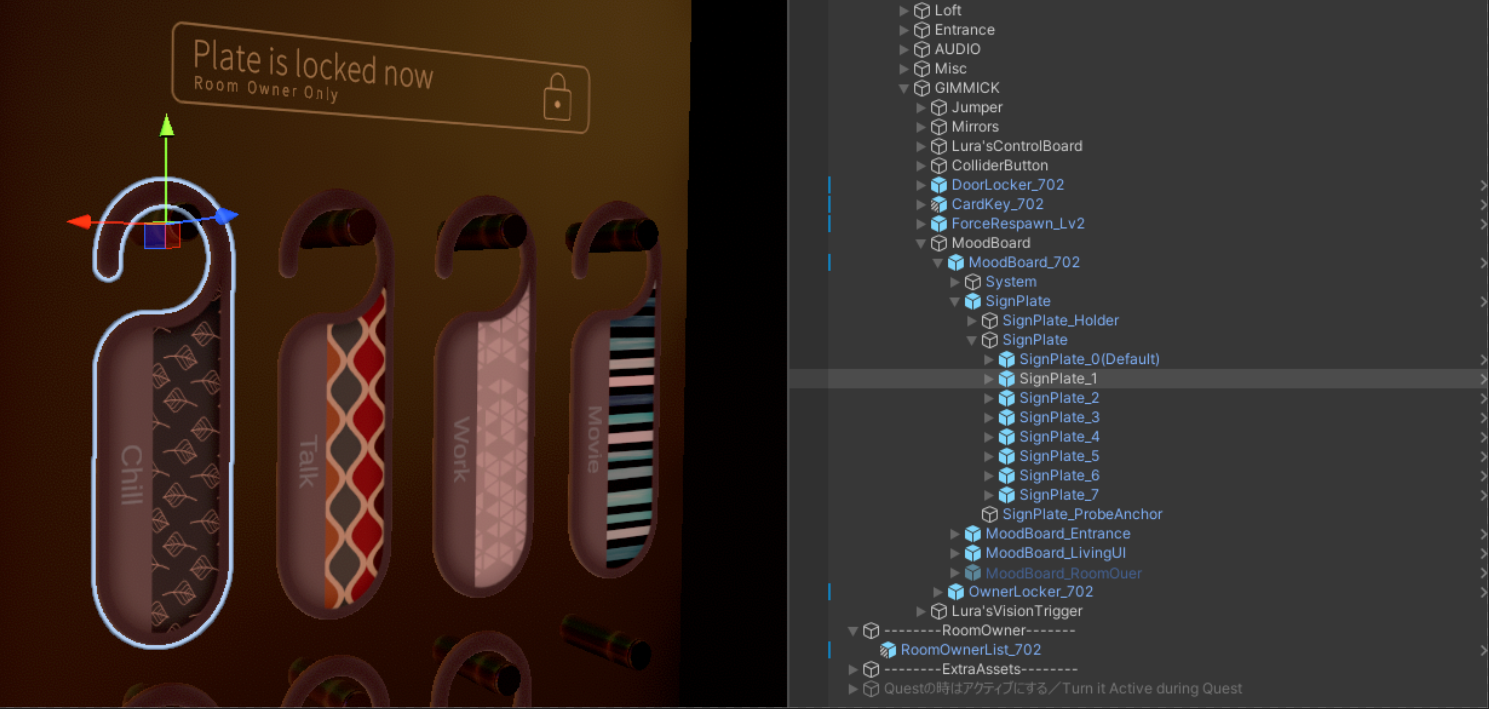
Sign plate settings
BGM settings
Each plate can have its own BGM. You can either assign an AudioClip or use a video URL. If you use a video URL, enable isVideoMode.
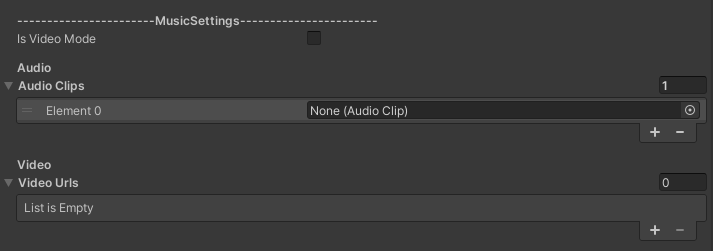
SignPlate_0(Default) is the default BGM used when no plate is hanging. It is optional, but using an AudioClip is recommended because it avoids extra video loading.
Mood object settings
Objects added to SignPlateObjects appear only for that mood. Objects placed in SignPlateObjects Inactive are hidden instead.
Assigning objects to SignPlateObjects lets you show items only when a specific sign plate is selected.
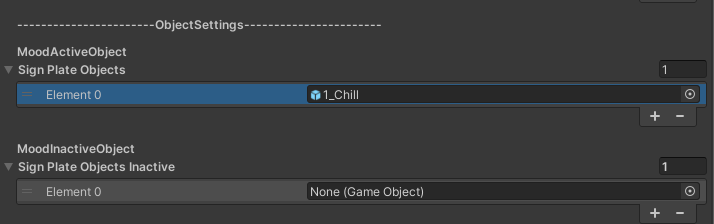
Objects such as 1_Chill are already used for post effects and reverb tuning. Leave them as they are.
Video player settings
If you place the video player under MoviePlayerHere, it appears when the Movie plate is selected. Put your preferred video player there and use it as needed.
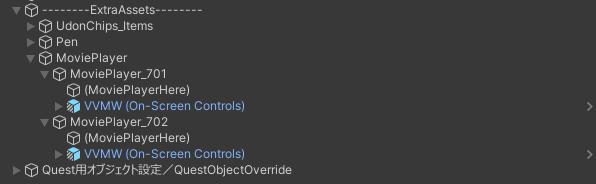
The demo world uses VizVid. For player-specific controls and settings, refer to that player's manual.
With VizVid, putting the player under MoviePlayerHere is enough for the position to line up correctly.
If you use another player, place it at the same position as MoviePlayerHere and fine-tune the transform if needed.
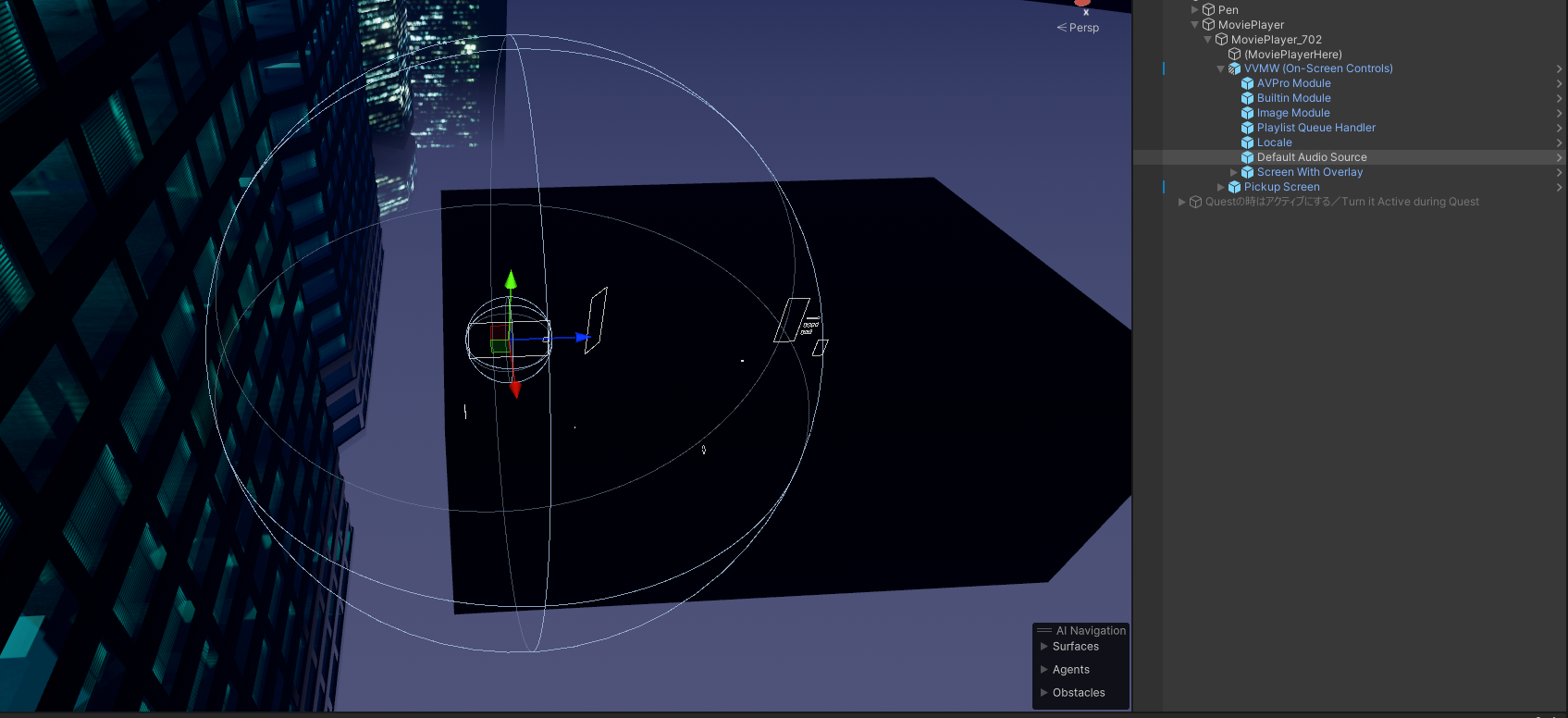
VizVid placement example
Screen placement for 701
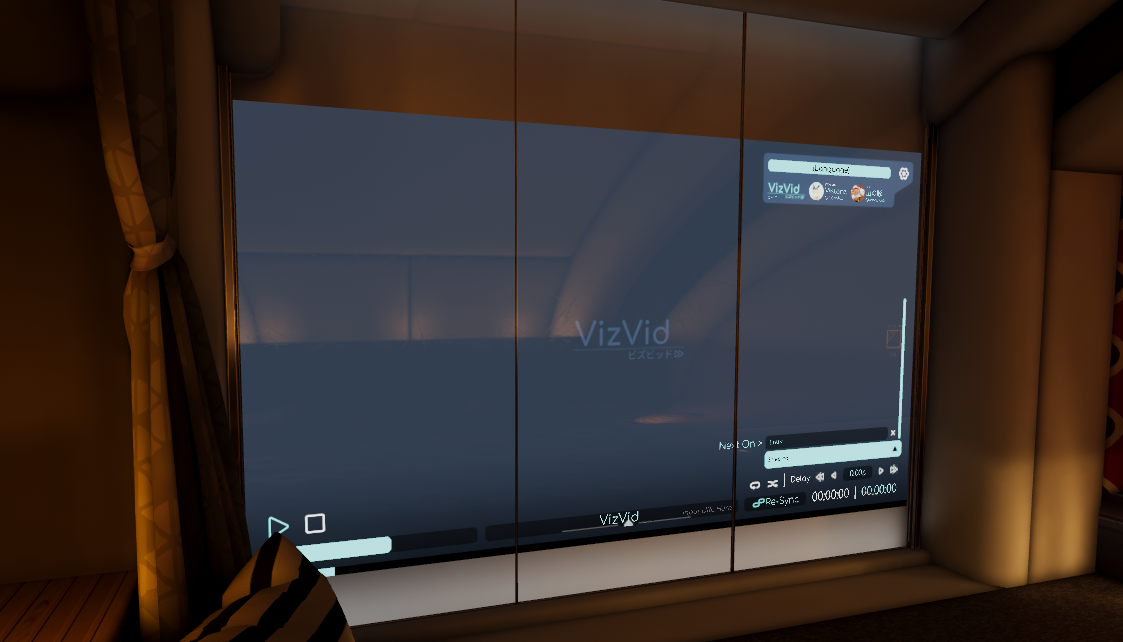
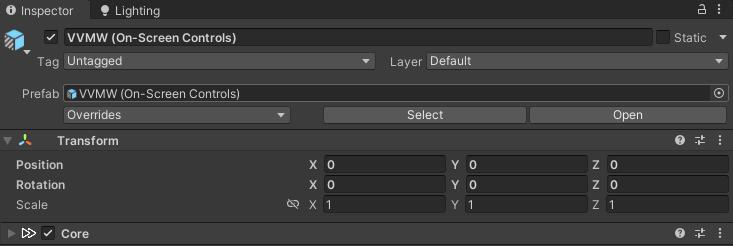
Audio settings for 701
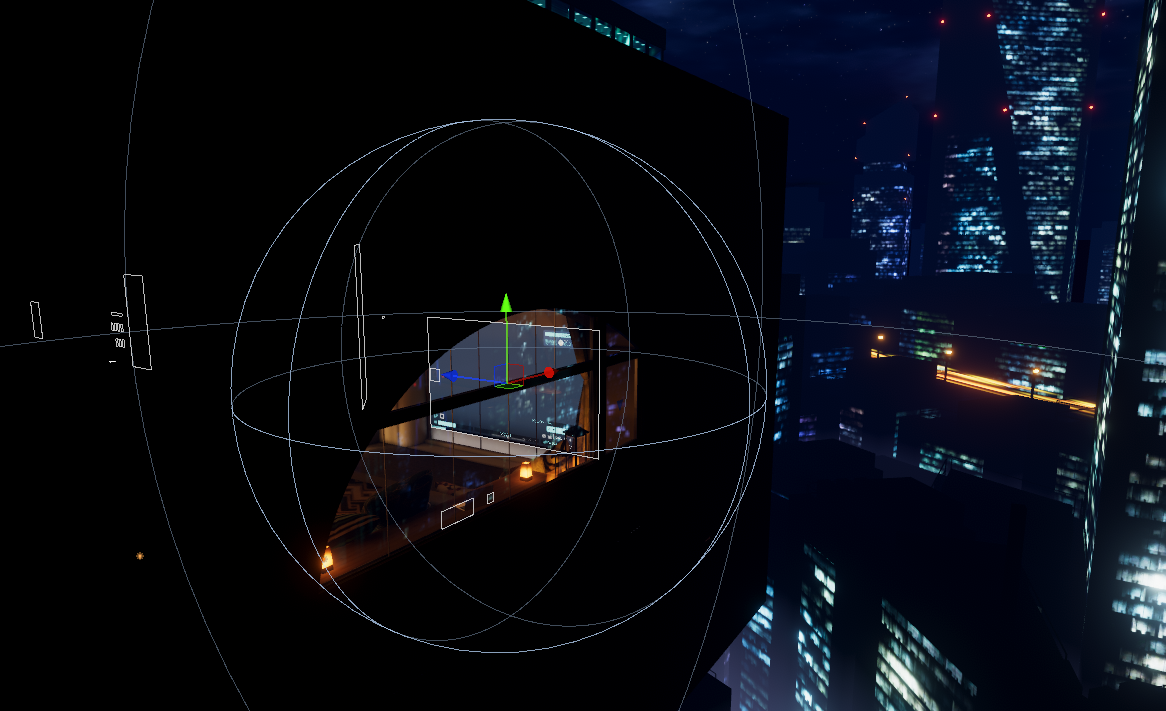
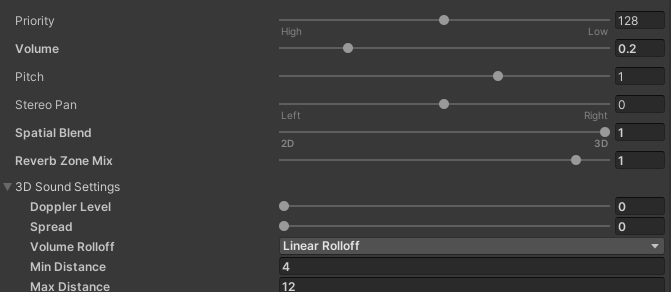
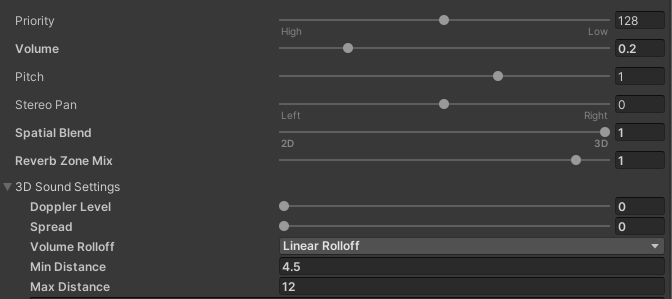
Placement and audio settings for 702
Next page
Continue to Upload and Quest Support to prepare the world for publishing.